




Top10VPN is editorially independent. We may earn commissions if you buy a VPN via our links.
The Best VPNs for Mac
Simon Migliano
Simon Migliano is a recognized world expert in VPNs. He's tested hundreds of apps and his research has been featured on the BBC, The New York Times, and more. Read full bio
ExpressVPN is the best VPN for Mac. Its intuitive macOS app gives you everything you need: instant IP switching, secure connections, and fast access to geo-blocked content. NordVPN is a very fast alternative while Proton VPN offers a free and secure app with unlimited bandwidth, ideal for protecting your MacBook on free public WiFi.
Macs are safer than PCs, and are less prone to malware attacks, but it doesn’t mean they’re completely immune to threats.
Plus, your Mac can’t control what you do online, how secure your connection is, or what content is geo-blocked.
That’s why a good VPN will elevate your Mac experience. But many have built sub-par apps that lack some of the features of their Windows clients.
So why pay for features you can’t use, right? The Mac VPNs we recommend offer close to PC feature-parity, and if a key setting is missing, we’ll tell you straight up.
Summary: The Best VPNs for Mac
Of the 60 VPNs we tested, we found that these five offer superior performance and reliability:
We’re fully independent and have been reviewing VPNs since 2016. Our ratings are based on our own testing results and are unaffected by financial incentives. Learn who we are and how we test VPNs.
VPNs Tested
60
Test Devices
iMac, MacBook Air & Pro
Combined Years of Experience
50+
We’ve analyzed each VPN on several iMacs and MacBooks running on either Tahoe or Sequoia.
All our macOS machines run on Apple Silicon, which handles VPN encryption a lot more efficiently than older Intel chips.
🔄 Recent Updates
We’ve clarified that NordVPN’s macOS app still lacks split tunneling, and ExpressVPN’s compact view has returned as an option (just in Beta, for now).
How to Choose a VPN for Mac
To help you narrow down the right VPN for you, we’ve prepared a checklist of what a top-tier VPN for Mac must have.
Here are the key characteristics a reliable and trustworthy VPN must have:
✅ Privacy: Proven no-logs policy, diskless (RAM-only) servers, and a secure jurisdiction.
✅ Speed: Exceptional internet speeds across server locations worldwide.
✅ Servers: A vast, global network covering a minimum of 50 popular countries.
✅ Unblocking: Confirmed to bypass content geo-restrictions in most countries.
✅ Torrenting: Full P2P traffic support on all, or at least most, of servers.
✅ Usability: Intuitive native apps for popular devices, Smart DNS proxy & router compatibility.
✅ Simultaneous Connections: At least five but ideally unlimited same-time connections allowed.
✅ Extra Features: Useful settings like split tunneling, dedicated IPs, and multi-hop servers.
✅ Customer Support: Expert, responsive 24/7 live chat support.
While price plays an important role, affordability is subjective, and while all our recommended VPNs represent great value, your personal budget will dictate which VPN to pick.
VPN Comparison Table
You can quickly compare our favorite VPNs for Mac side by side in the table below:
Unblocks 18 Netflix regions, Disney+, Prime Video & more
AES-256 & ChaCha20 encryption plus diskless servers
Excellent compatibility with iPhone, iPad & Apple TV
7-day free trial via mobile & 30-day refund guarantee
More expensive than Surfshark
No multi-hop servers
Pricing Plans
$12.99/mo
$4.99/mo over 15 months
$2.79/mo over 28 months
Money-Back Guarantee
30 Days
macOS Compatibility
Big Sur or newer
Servers
13,360
Countries with Servers
109
Logging Policy
No Identifiable Data
Simultaneous Connections
10
Support
24/7 Live Chat
Compatible with
Windows
Mac
iOS
Android
Linux
Amazon Fire TV
Android TV
Apple TV
Router
Chrome
While many review websites rank NordVPN as the best VPN for Mac, we wholeheartedly disagree.
ExpressVPN’s user experience and performance have been remarkable ever since we started testing it in 2016.
Its plug-and-play approach, combined with phenomenal all-round test results, clearly separate it from the pack.
Sure, NordVPN or Surfshark offer additional features, but ExpressVPN’s core VPN security and privacy settings are simply phenomenal, and absolutely fine for most people.
Moreover, the new macOS app finally contains features that were previously only available in the Windows client.
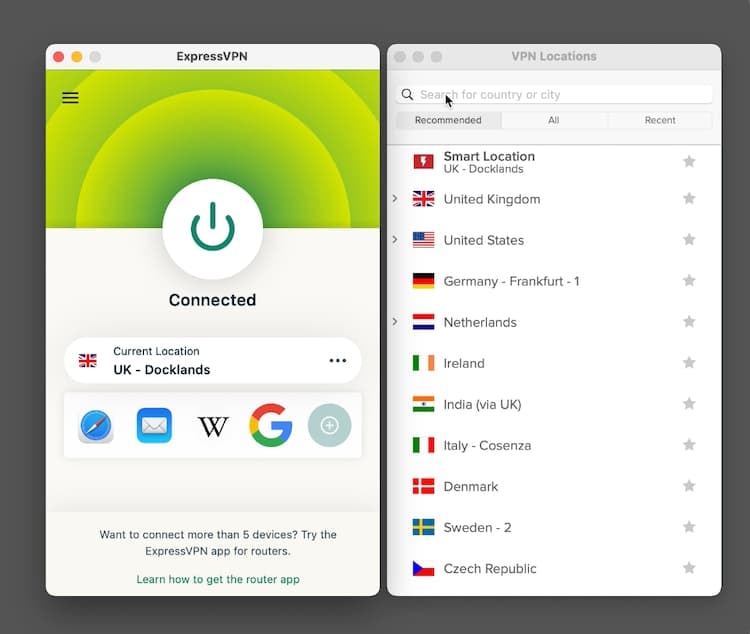
ExpressVPN’s macOS app is very smooth and easy to use.
A Fully Featured App for Mac
Despite a major redesign, we still find ExpressVPN’s macOS app is still the most intuitive and user-friendly on the market.
The latest app version has moved to a larger home screen that’s still designed to connect you to a VPN server as quickly as possible.
There are fewer distractions compared to NordVPN and Surfshark, with a big connect button at the top of the screen that you simply can’t miss.
You can quickly find your desired server location by clicking the chevron on the ‘Selected Location’ button, which opens up the server list.
Like Proton VPN, ExpressVPN allows you to switch back to its previous compact app view, which we actually prefer. It’s in beta for now, and available from ExpressVPN’s website.
ExpressVPN’s US server list in the Mac app.
What’s remarkable is how quickly the app connects to a server. It takes literally one or two seconds, even connecting to faraway locations.
The big difference with NordVPN is that ExpressVPN’s Mac app is essentially the same as the Windows version, with previously missing features like split tunneling now included.
The only major absence from the Mac app is Lightway Turbo, the newest and fastest ExpressVPN protocol, which is Windows-only for now.
ExpressVPN has also launched a separate client for the Mac App Store, but it lacks important settings such as an advanced kill switch, split tunneling, and auto-connect on unsecured WiFi networks.
Want our advice? Stick with the standalone .dmg application from the website.
Unblocks the Most Streaming Services
When it comes to VPNs for streaming, ExpressVPN is unrivaled, even on Mac.
Its ability to stream geo-restricted content is exceptional, especially on major platforms like Netflix (18 regions), Prime Video, Disney+, HBO Max, Hulu, and BBC iPlayer.
We enjoyed using ExpressVPN with Hulu + Live TV.
Almost every server worked instantly, saving us from having to cycle through many that don’t, which is what happens with a lot of other VPNs.
This superior level of geo-unblocking is paired with fast and consistent streaming speeds.
With a slowdown of just 2% on nearby connections, and only 15% around the globe, ExpressVPN streamed at maximum resolution and without annoying buffering or interruptions.
Encrypts Internet Traffic & Anonymizes Activity
Despite its simplicity, ExpressVPN’s software is one of the most reliable to keep your internet activity private and secure.
By default, ExpressVPN encrypts internet traffic using AES-256 or ChaCha20 keys, and its Lightway protocol, which barely affected our MacBook’s battery life.
All traffic runs through diskless (RAM-only) servers that never write data to disk, although ExpressVPN doesn’t log internet activity anyway.
We also love the VPN’s built-in ShuffleIP technology, which alters your IP address every time you visit a website or open an app, without changing your location.
And its kill switch, called ‘Network Lock,’ will stop your IP address from being exposed during VPN connection failures (which almost never happen with ExpressVPN).
The latest software upgrade also includes post-quantum protection, which uses new algorithms to prevent your data from being collected and decrypted in the future.
ExpressVPN could go one step further and add multi-hop servers to its arsenal of features, like NordVPN and Surfshark, but truthfully most VPN users don’t need them.
Works with 17 Netflix libraries, HBO Max, BBC iPlayer & more
RAM-only servers that don't collect identifying logs
Many extra features like multi-hop servers & Threat Protection
The widest range of dedicated IP locations
Feature-overloaded home screen
No split tunneling on macOS
Pause function is frustrating & arguably pointless
Retains connection timestamps for 15 minutes
Renews at a much higher subscription price
Pricing Plans
$12.99/mo
$4.99/mo over 12 months
$3.09/mo over 27 months
Money-Back Guarantee
30 Days
macOS Compatibility
Monterey or newer
Servers
9,000
Countries with Servers
127
Logging Policy
No Identifiable Data
Simultaneous Connections
10
Support
24/7 Live Chat
Compatible with
Windows
Mac
iOS
Android
Linux
Amazon Fire TV
Android TV
Apple TV
Router
Chrome
NordVPN is a fan favorite at the moment, and it feels like its ads are on every podcast under the sun.
We call balls and strikes here, though, and in our Mac tests the extremely popular VPN fell just short of ExpressVPN.
Don’t be mistaken, though. NordVPN is still a great option thanks to its extremely fast NordLynx protocol, its advanced security features, and its strong geo-unblocking results.
That being said, NordVPN’s macOS client isn’t as polished as ExpressVPN’s, with questionable UX decisions that affect user experience.
NordVPN’s application for Mac.
Excellent Security But No Split Tunneling
Let’s start with some positives: security-wise, NordVPN narrowly beats ExpressVPN.
The app’s highlights include ChaCha20 encryption, diskless servers, a fully working kill switch, and multi-hop servers that encrypt traffic twice by routing it via two VPN servers rather than one.
NordVPN’s multi-hop servers work perfectly.
Like ExpressVPN, there are two types of kill switch available: an ‘internet’ kill switch that cuts all system connectivity, and an ‘app’ version for specific apps only.
We recommend enabling the system-wide internet kill switch for more complete protection, especially if you’re using the VPN to torrent files.
NordVPN also offers post-quantum protection, but it doesn’t offer an in-session rotating IP solution like ExpressVPN, yet.
Threat Protection is also worth mentioning, NordVPN’s ad and tracker blocker: it blocked over 90% of ads and analytic trackers in our tests.
However, the Mac version lacks the app-vulnerability scanning you get on Windows.
Slightly Overwhelming User Interface
The onboarding flow of NordVPN’s Mac app is certainly more informative than ExpressVPN’s.
During installation, various screens will show you where to find the multiple settings available in the app.
That being said, the home screen of the app presents way too many options and features, including a map, Threat Protection Pro, and Dark Web Monitor.
While these may be useful features to some people, they certainly aren’t core functions and distract from the main purpose of the product.
The NordVPN macOS application in Dark Mode.
Some settings, like Meshnet or P2P specialty servers, are also hidden behind generic icons that lack clear labels. You have to hover over each one to understand what they are.
And NordVPN’s “Pause” feature missed the mark for us, making a basic task clunky.
Burying the full disconnect option at the bottom of a “suspension” time drop-down overcomplicates an action that should be instant.
Presenting both options side by side, like Surfshark does, would be much more user-friendly.
What Surfshark’s app also has that NordVPN doesn’t is split tunneling. This is where NordVPN has dropped the ball and hasn’t matched its Windows offering on macOS.
As always, there are also significant differences between the app in the App Store and the one available from the NordVPN website.
Without warning, the App Store version lacks several key settings, such as the app-specific kill switch, full protocol selection, custom DNS servers, obfuscated servers, and Threat Protection Pro.
Some of the Mac App Store software requirements may be at the heart of these inconsistencies, however this is still not good.
If it was down to us, we’d remove the Mac App Store app and make the full website version the only one available.
Good Streaming Alternative to ExpressVPN
If you want to use your VPN to stream geo-restricted content, NordVPN is a worthy challenger to ExpressVPN.
We streamed the NBA by unblocking the Disney+ Australia content library.
While ExpressVPN works with several more content platforms overall (115 compared to 102), NordVPN actually delivers better results in specific countries.
For example, NordVPN is a stronger VPN for Canada, bypassing some of the country’s geo-blocks more consistently.
On the flip side, NordVPN couldn’t access other popular streaming services, like Hotstar in India, NFL+ in the US, and several DAZN regions.
The only real reason for choosing Surfshark over ExpressVPN or NordVPN is because it’s considerably cheaper, and because you can trial it directly on Mac.
Surfshark still offers great privacy and security, though, and it even unblocks a good amount of geo-blocked content.
It even offers features on macOS that it doesn’t on Windows. That’s a first!
However, Surfshark’s speeds over longer distances are noticeably slower than its top-tier rivals, and the app is nowhere near as user-friendly or responsive as ExpressVPN’s.
Surfshark’s macOS app is full of free extra settings.
Many Advanced Free Settings
You can tell Surfshark is owned by the same company as NordVPN (Nord Security) when you see the long list of additional features on offer, many of which are included in the basic plan.
Some of the settings available in Surfshark’s Mac app.
On top of must-haves like the WireGuard protocol, ChaCha20 encryption, and a standard system-wide kill switch, you also get extra settings like Rotating IP, and dynamic multi-hop servers.
While NordVPN’s Double VPN (multi-hop) setting limits your choice to 10 countries, Surfshark’s allows you to set up custom connections via any two server locations of your choice.
Multi-IP is a Mac-only setting that works like ExpressVPN’s ShuffleIP system, changing your IP whenever you connect to a new website or app. You’ll have to enable it in the Settings menu.
Surprisingly, the kill switch isn’t enabled by default, so when you first launch the app remember to activate it before connecting to a VPN server.
As always, the .dmg version of the app is more advanced than the App Store app, which doesn’t include Bypasser, Surfshark’s split tunneling setting, for instance.
Disappointing Menu Bar App
We’ve used Surfshark a lot on Mac, and the app is just not as user-friendly as we’d like it to be.
It’s by no means difficult to use, but when you compare it to ExpressVPN’s app, the difference is obvious.
The home screen is fine, and you can easily connect to a VPN server, although it takes a good few seconds to actually change IP address.
We also found ourselves using the ‘favorite’ feature often, which pins a specific country to the top of the list for quicker future access.
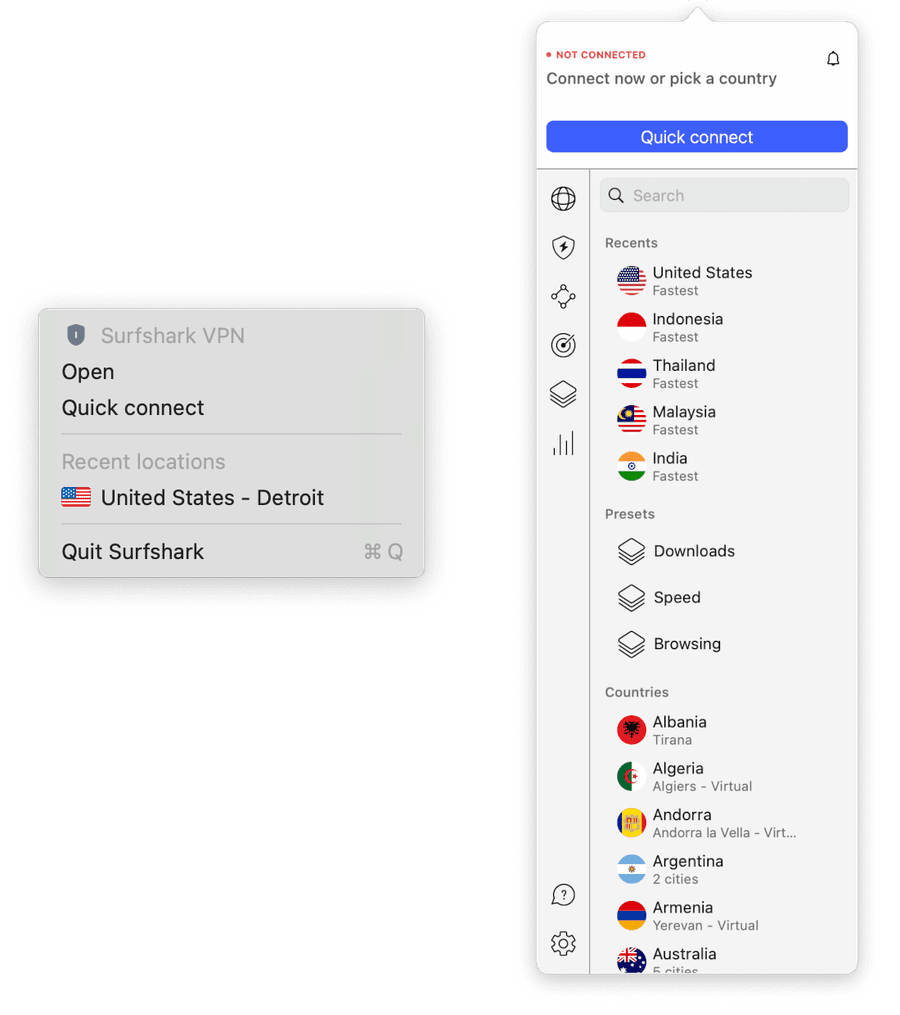
The menu bar app was really disappointing, though. It only allows you to connect to a default server rather than one of your choice, like the ExpressVPN and NordVPN menu bar apps.
Surfshark’s menu bar app (left) is severely limited compared to NordVPN’s (right).
The user interface is also cluttered. The actual VPN is just one of five functions available on the navigation bar. These add-ons are always there, even if you aren’t subscribed to them.
The VPN section itself is also quite chaotic, with three separate tabs for the various server types you can use: ‘Locations,’ ‘Static,’ and ‘Multi-hop.’
7-day Free Trial Available Directly on Mac
Surfshark costs only $1.78/mo over 27 months and, considering what you get with it, is a bargain.
Proton VPN is hands-down the best free VPN for Mac. Even better than that, it’s the best free VPN we’ve reviewed overall.
The VPN’s free Mac client is easy to use, and it’s the only trustworthy free VPN that doesn’t impose bandwidth restrictions.
Despite its several limitations, Proton VPN’s free app is excellent for essential privacy and security needs. But let’s be very clear: it is no good for torrenting or for accessing geo-restricted content.
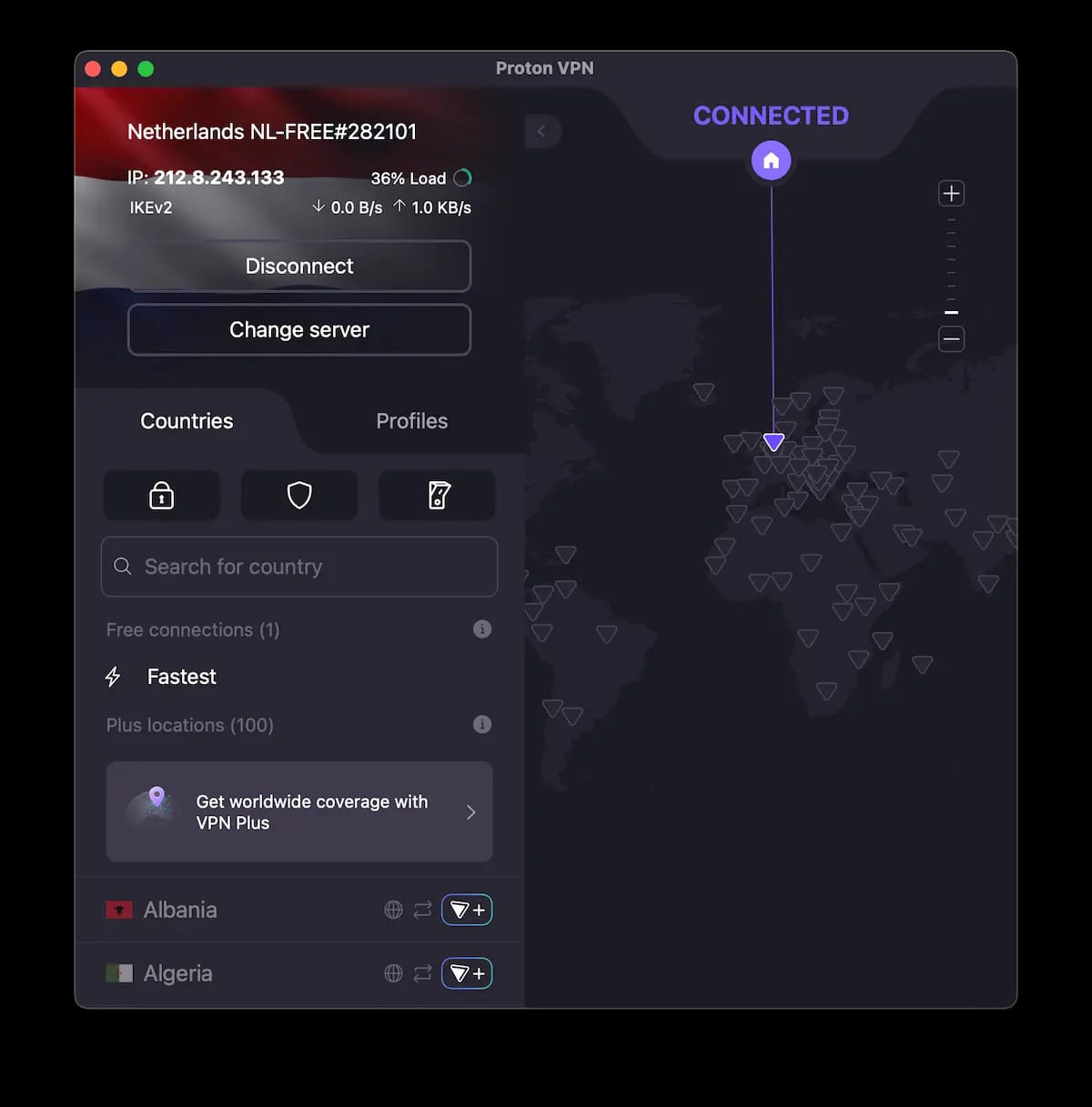
Proton VPN’s application for Mac.
Dependable Security & Privacy Settings
Proton VPN is renowned for its security and we can confirm that it lives up to the hype.
The free service encrypts traffic via secure ChaCha20 or AES-256 ciphers (depending on the protocol you use), authenticates data with SHA-384 hashes, and establishes connections via RSA-4096 handshakes.
This means that the data you send over the Internet is fully encrypted and significantly harder to intercept and decipher. We verified this using Wireshark.
The Mac app includes several free settings such as a kill switch, which we’re glad is enabled by default, to prevent IP leaks if the VPN connection suddenly disconnects.
Proton VPN’s free app offers many security features.
These settings are supported by the company’s privacy-first logging policy and the company’s Swiss jurisdiction, which doesn’t mandate any data-gathering for VPN providers.
All this adds up to make Proton VPN one of the most trusted VPNs for keeping your data both private and secure.
Unlimited Data Allowance but No Streaming
Arguably Proton VPN’s key advantage is that it’s the only safe free VPN that offers unlimited bandwidth. You can leave it running for as long as you want.
That said, you won’t be able to benefit from most high-bandwidth activities while connected to a free server.
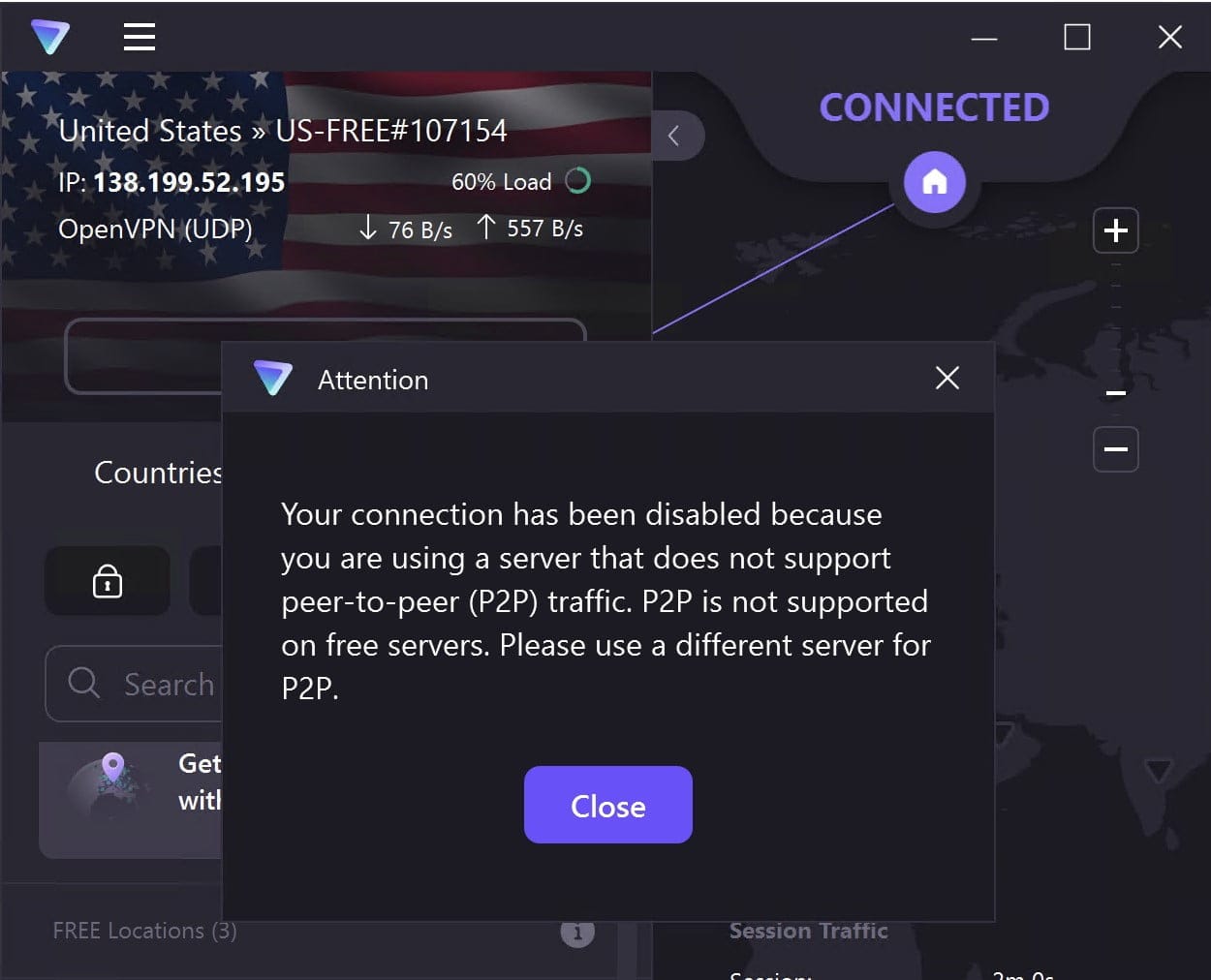
Firstly, the free VPN has never got round most streaming geo-restrictions around the world. Secondly, all free servers actively block torrenting and P2P traffic.
You can’t torrent on any of Proton VPN’s free servers.
This was a great source of frustration for us, and it undoubtedly makes Proton VPN’s unlimited free data allowance less useful.
Frustrating Usability Restrictions
Proton VPN’s Mac app is straightforward to use and, unlike many of the free VPNs we tested, it’s ad-free and even felt premium while using it.
The free app’s design mirrors the paid version, which can be frustrating at times, since you can’t access many features available only to paid users.
And despite a large app window, there is limited functionality with only the ‘Disconnect’ button and the kill switch icon available.
Many of the features on Proton VPN’s Mac app can’t be used without a paid account.
The free app’s interface is also dominated by features like ‘Change Server’, ‘Plus Locations’, ‘Secure Core’, and ‘NetShield,’ which require a paid account.
Moreover, to use the WireGuard protocol, Proton VPN’s app needs permission to add a Mac system extension, granting it higher privileges. Other VPNs, including Windscribe, didn’t require this extra step.
But, arguably the biggest limitation is that you can’t choose a server location to connect to. The app automatically connects you to the fastest (nearest) free server available.
By contrast, Windscribe lets you choose between free servers in 10 countries.
Unblocks 5 Netflix regions, BBC iPlayer & other streaming platforms
Allows torrenting on all its free servers
Menu bar app allows you to quickly change server locations
Works in highly-censored countries like China
Unlimited simultaneous connections
10GB monthly data cap
Minor macOS compatibility issues
Doesn't work with US Netflix
No human live chat support
Slower than Proton VPN
Data Cap
10GB per month
macOS Compatibility
Ventura or newer
Servers
10
Countries with Servers
10
Logging Policy
No Identifiable Data
Simultaneous Connections
Unlimited
Support
Email & Online Resources Only
Compatible with
Windows
Mac
iOS
Android
Linux
Amazon Fire TV
Android TV
Apple TV
Router
Chrome
Windscribe has been one of our favorite free VPNs for Mac since the very beginning, mostly thanks to its superb unblocking capabilities.
Similarly to Proton VPN, Windscribe’s apps are user-friendly and have all the key security and privacy settings you need from a VPN service.
The big differences are that Windscribe can bypass many content geo-blocks, allows torrenting, but it limits usage to 10GB each month.
Windscribe’s application for Mac.
Great Free VPN for Streaming
Windscribe’s free service works with many content platforms, including UK Netflix, BBC iPlayer, Disney+, Hulu, Prime Video, and HBO Max.
Windscribe’s multiple free US servers work with HBO Max.
During our tests, we streamed geo-blocked movies and TV shows from all 10 free server locations.
Speeds were good enough for us to stream TV shows and movies in HD, although we did experience sudden speed slowdowns that resulted in fuzzy video quality on occasion.
The only real drawback to using Windscribe’s free plan is its 10GB monthly data cap. For context, this is roughly four hours of HD streaming.
Unblocks Websites in Highly-censored Countries
Unlike most trustworthy VPNs, Windscribe can still circumvent internet restrictions in highly censored countries like China and Russia. This includes its free service.
We tested the VPN for access in China via our remote server in Shanghai, and it unbelievably worked 85% of the time.
To bypass national firewalls, you’ll have to go into the app’s ‘Preferences’ menu and toggle on the ‘Circumvent Censorship’ setting.
The toggle activates AmneziaWG, an effective obfuscation protocol that allows the VPN to unblock sites and apps in places with high levels of censorship.
A Secure Free VPN for Torrenting
Where Proton VPN disappoints, Windscribe pleases, particularly for anonymous torrenting and file sharing.
Windscribe continues to be an exceptional free VPN for torrenting, delivering P2P traffic on all its free servers with a very respectable average transfer speed (bitrate) of 6.3MiB/s.
Just like Proton VPN, Windscribe also offers a tried-and-tested kill switch, built-in DNS leak protection, and secure AES-256 and ChaCha20 encryption.
Importantly, make sure you stop torrenting before your data runs out, otherwise your real IP address will leak (even with the kill switch activated).
Minor App Issues & Poor Customer Support
Windscribe’s macOS app is very easy to use, with a simple layout and large button for easy connections. There are also way more extra settings available compared to Proton VPN.
But, if you experience issues, there is no human live chat support to help unfortunately. You can speak to Garry, an automated chatbot, but we have never found it helpful.
The only other downside to Windscribe is that the Mac app is a basic menu bar app. Menu bar apps are small, limited in functionality, and hard to configure.
Plus, the app doesn’t even behave like a typical menu bar app. When you interact with it, it forces you out of the foremost app and jumps to the desktop.
In the latest version, you can detach the app from the menu bar. But, this simply turns the app into a floating window, which doesn’t really improve user experience.
After testing 60 VPNs, a handful came very close to making our recommendations list above, but ultimately weren’t quite good enough.
We’ve listed below four popular VPN options that fell short of meeting our very high selection standards.
Mullvad
Mullvad stands out as one of the most secure VPNs on the market. It’s packed with excellent security features like post-quantum encryption and multi-hop servers.
It even leverages modern VPN obfuscation to seamlessly bypass strict censorship in countries like Russia.
The reason why it didn’t make our final list of recommendations is that it’s practically useless for getting around streaming geo-restrictions.
You also won’t find apps for Firestick or Apple TV, nor typical browser extensions, though it does mitigate this slightly by offering its very own private browser.
As expected, Mullvad encrypted our internet traffic.
IPVanish
IPVanish’s macOS application did well in our assessments, especially in our privacy and speed tests.
Ultimately, the app’s design isn’t as impressive as ExpressVPN’s, and its unblocking capabilities aren’t quite as comprehensive. It’s improving, though.
It’s also reacting to vulnerabilities a lot more quickly than in the past: in March 2026 it patched a severe issue affecting OpenVPN handling on macOS in a matter of days.
IPVanish’s macOS application.
CyberGhost
CyberGhost is a cheap VPN that doesn’t perform badly, but didn’t wow us, either.
The pain points to know about are the VPN’s slow speeds, especially over long distances, and the lack of several advanced features like multi-hop servers.
On Mac specifically, you won’t find a split tunneling setting. The closest alternative is ‘Exceptions,’ which lets you exclude specific websites from the VPN’s connections.
CyberGhost’s server list, as shown in its Mac app.
Private Internet Access (PIA)
While PIA’s macOS app closely matches its Windows counterpart on features, we found it slightly frustrating to use.
The Mac client launches as a menu bar app by default, and traditional keyboard shortcuts didn’t work with it. The windowed app also took over three seconds to load.
It’s a shame because PIA is a great no-logs VPN ideal for private browsing and file sharing, but these user experience issues need to be fixed before we can recommend it for Mac.
Downloading torrent files with PIA VPN.
How to Use a VPN on Mac
Using a VPN on Mac is very simple if you decide to install VPN software, rather than configuring a VPN connection in your device’s settings.
In the video below we demonstrate just how easy it is, using ExpressVPN as an example:
How to use a VPN on macOS.
Alternatively, follow these very simple step-by-step instructions:
Instructions: How to Set Up a VPN on Mac
Subscribe to a VPN service. We strongly suggest you sign up to one of our recommended VPNs.
Download and install the app from the provider’s official website. NordVPN and Surfshark are also available on the Mac App Store.
Check that key security settings are enabled. Make sure the kill switch is active, and you’re using a secure protocol, like WireGuard.
Connect to your desired VPN server location. If you’re using a VPN for privacy or security, connect to the location closest to you. To bypass geo-blocks, connect to a server in the location where the content is available.
There are also other ways to set up a VPN on Mac, but the above method is by far the easiest and most popular.
How We Test VPNs for Mac
We tested 60 VPNs on our iMac, MacBook Air, MacBook Pro, and even our Mac mini, to verify a service’s quality across the full range of macOS products.
These are the six testing categories that we measure each VPN against:
Below is a detailed explanation of these categories, and their weighting towards an overall rating specifically for Mac:
1. Mac App (35%)
Test Conducted: We ensured that there is a native app for macOS that can be easily downloaded either via a web page or through the App Store. We then checked the simplicity of connecting to a VPN server and changing the IP location. Additionally, we evaluated if the Mac VPN app has a kill switch, split tunneling feature, or any advanced functionality.
Why It’s Important: Each VPN app should be as intuitive to use as Apple’s built-in applications, providing ease of use and necessary features for a seamless experience.
Optimal Result: An easy-to-use and feature-packed Mac app that is downloadable through the App Store, includes a kill switch, split tunneling, and other advanced functionalities, and matches the functionality of its Windows counterpart.
2. Privacy (15%)
Test Conducted: We inspected every VPN’s privacy policy to understand what information is collected, the purpose of the collection, and the duration of storage. We looked for VPNs that present their logging practices clearly and concisely and checked for privacy flaws and IP address leaks.
Why It’s Important: A strict no-logs policy is essential to ensure user privacy and security, especially since many VPNs, particularly free ones, collect and sell user data.
Optimal Result: A clear no-logs policy with anonymized connection logs, and ideally, no logs at all, ensuring no personally identifiable information is collected or stored.
3. Security (15%)
Test Conducted: We evaluated each VPN’s security, testing its WireGuard protocol (or equivalent) protocol and, using Wireshark, whether it fully encrypts internet data with AES-256 or ChaCha20 algorithms. We also ensured its kill switch actually prevented sudden IP address leaks.
Why It’s Important: A VPN has to fully encrypt the internet data you send over the internet, especially on public WiFi networks. With the right security measures in place, a VPN will reduce the risk of data breaches and man-in-the-middle attacks.
Optimal Result: A VPN with WireGuard, OpenVPN or equivalent protocol support that’s been properly configured. A working VPN kill switch, with both internet and full network-level interruption options. If the VPN doesn’t support IPv6, leak-prevention mechanisms on such connections.
4. Speed (15%)
Test Conducted: We performed a series of manual speed tests while connected to servers around the world using our MacBook Pro. Each VPN was tested monthly per location and rated based on average download speeds.
Why It’s Important: Fast speeds are crucial for HD streaming and quick downloads, preventing slow speeds, connection dropouts, and ensuring an overall smooth experience.
Optimal Result: Impact on our internet speed of less than 10% connecting to nearby VPN locations, and below 20% on longer-distance connections.
5. Streaming (15%)
Test Conducted: We tested all VPNs on our MacBook Pro and iMac to see if they work with popular streaming services such as US Netflix, BBC iPlayer, Amazon Prime Video, and Hulu. We tracked each VPN’s performance over time, ensuring consistent results.
Why It’s Important: VPNs must reliably unblock streaming services to provide access to geo-blocked content without interruption.
Optimal Result: A VPN that unblocks multiple Netflix libraries, BBC iPlayer, Amazon Prime Video, and other major streaming services consistently.
6. Torrenting (5%)
Test Conducted: We carried out our standard torrenting tests, downloading a self-hosted 1GB torrent file from a private tracker while connected to each VPN’s closest P2P-enabled servers.
Why It’s Important: Having fast connection speeds and being able to conceal your internet activity are essential while torrenting. It allows you to torrent very quickly, and prevents your ISP or snooper in the torrent swarm from seeing your real IP address.
Optimal Result: A file sharing bitrate with minimal speed loss (less than 10%), verified encryption of the data transferred through the VPN tunnel, a no-logs privacy policy, and useful P2P features such as port forwarding.
Data Cap Penalty
A data cap will limit the amount of bandwidth you can use each month. It’s the most popular way that safe free VPNs restrict their service.
This limitation inhibits the number of times you can stream, torrent files, or browse the web using your VPN — making it the most noticeable limitation you’ll face day-to-day.
We apply a penalty to the VPN’s final overall Mac rating based on its data cap:
Unlimited bandwidth: No deduction to the overall rating
10GB per month: -20% to the overall rating
500MB per day: -25% to the overall rating
5GB per month: -30% to the overall rating
1GB per month: -35% to the overall rating
200MB per day: -40% to the overall rating
500MB per month: -50% to the overall rating
As well as checking every VPN’s data allowance policy, we download each service and check if there are any methods to obtain extra data each month. We’ve found that some VPNs increase your data allowance by up to 500% if you provide a username and password.
FAQs
Does macOS Have a Built-in VPN?
No, macOS devices do not have a built-in VPN, but they do have built-in IKEv2 VPN support.
You can find the VPN configuration settings in your device’s System Preferences. To set up the VPN you’ll need the configuration files from your VPN service, which you can download from the provider’s website.
We always recommend using a native VPN application for Mac, though. It saves you time, and ensures the necessary security settings are configured correctly.
Is iCloud Private Relay a VPN?
iCloud Private Relay is available to all iCloud storage plan subscribers. It effectively concealed our IP address and encrypted our Safari traffic, but it’s not a VPN.
iCloud Private Relay only works with Safari, and it doesn’t allow you to get an IP address from another country. It’s therefore useless for bypassing geo-restrictions.
How Do I Fix VPN Errors Caused by My Firewall?
macOS Sequoia (version 15) users are still experiencing connectivity issues when using a VPN, often caused by enabling the macOS firewall.
The two quick workarounds below fixed these issues whenever we’ve encountered them:
Turn off the firewall in System Settings > Network > Firewall.
Disable “Limit IP address tracking” in System Settings > Network > Wi-Fi/Ethernet > Details.
How Do I Change My IP Address on Mac?
The easiest and safest way to change your IP address on your iMac or MacBook is to use one of the trusted VPNs we recommend in this guide.
Once you’ve set up your VPN and enabled all available security settings, select a VPN server location and click the connect button.
Once you’re connected to the VPN server, your true IP address will be hidden and replaced by the new VPN IP address.
Verify your IP address has changed by using an IP lookup tool. If your visible IP address is different from your usual one, the VPN has successfully changed your Mac’s IP address.
Is There a VPN Extension for Safari?
There are no VPN extensions for Safari anymore. ExpressVPN had developed one several years ago, but it was retired due to changes Apple made to its Safari Extensions Gallery.
In case it’s helpful, all the VPNs we recommend in this guide do have excellent browser extensions for Chrome and Firefox.
How Much Battery Does a VPN Drain on MacBook?
This depends heavily on the VPN protocol in use. With WireGuard (including NordVPN’s NordLynx) or ExpressVPN’s Lightway, you’ll roughly lose an additional 5% battery life each hour.
You want to avoid using OpenVPN, as it’s a “heavier” protocol that uses more data and drains roughly 20% more battery life than WireGuard.
Other factors that can affect battery life are: VPN runtime; the number of VPN server changes; and, how far is the VPN server you’re connected to.